Launch Tsumicky
Tsumicky runs on a web browser.
Installing Python and libraries
Tsumicky itself runs on a web browser, but a Python server is also required as its backend.
For instructions on how to install Python, please refer to https://www.python.org/, etc.
To run the backend server, you need to install Python libraries.
The backend server files are located in the "bkserver" folder within the Tsumicky installation folder.
Use the "requirements.txt" file in that folder to install the Python libraries.
For example, let's say you extracted the Tsumicky zip file to the tsumicky folder on the C drive.
In this case, enter the commands in the following order:
c:
cd \tsumicky\bkserver
pip install -r requirements.txt
Starting the backend server
The backend server is the "bkServer.py" file located in the aforementioned "bkserver" folder.
Running this file in Python will start the backend server.
For example, let's say you've unzipped the Tsumicky zip file into the tsumicky folder on your C drive.
In this case, enter the commands in the following order:
c:
cd \tsumicky\bkserver
python bkServer.py
Once the backend server has started, leave the command prompt open.
Installing Nginx
To access Tsumicky via a web browser, you need to install the Nginx web server.
For Windows, visit the Nginx download page and click the "nginx/Windows-X.XX.X" link under the "Stable Version" section to download the software.
Once the download is complete, extract the contents of the ZIP file.
Inside the extracted folder, you will find a directory named "conf" containing a file called "nginx.conf."
Open this file using a text editor, such as Notepad.
Within the file, you will see the following section:
location / {
root html;
index  index.html index.htm;
}
Replace "html" in the "root html;" line with the path to the folder where you extracted Tsumicky (the folder containing the "index.html" file).
Note that you must use forward slashes ("/") as path separators, and ensure that the path ends with a forward slash ("/").
For example, if you extracted Tsumicky into a folder named "tsumicky" on your C: drive, you should modify the "root html;" line as follows:
root c:/tsumicky/;Save the changes to "nginx.conf."
Next, launch Nginx by running the "nginx.exe" file located in the folder where you extracted Nginx.
Once Nginx is running, you can access Tsumicky by navigating to "http://localhost" in your web browser.
Selecting an Environment
When launching Tsumicky, a dialog box will open, allowing you to select Japanese or English and the environment appropriate for your programming needs.
Click the "Change to English" link to switch to English.
After that, select an environment and click the "Launch" button to launch in that environment.
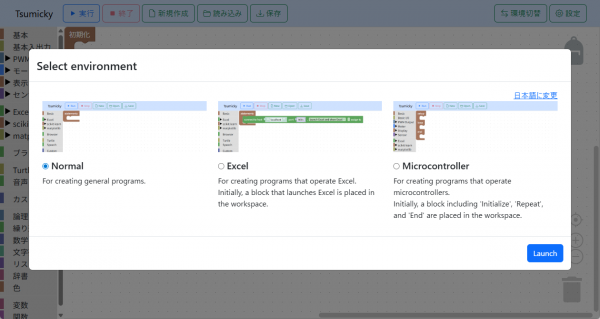
You can also set the default environment at startup by clicking the "Settings" button in the upper right corner of the screen after launching.
Starting the Application After Installation
Once the installation is complete, you can launch Tsumicky by following these steps:
- Run `bkServer.py` (located in the "bkserver" folder) using Python.
- Execute `nginx.exe` (located in your nginx installation directory).
- Access `http://localhost` via your web browser.